
Quiz popups that turn a few questions into subscribers
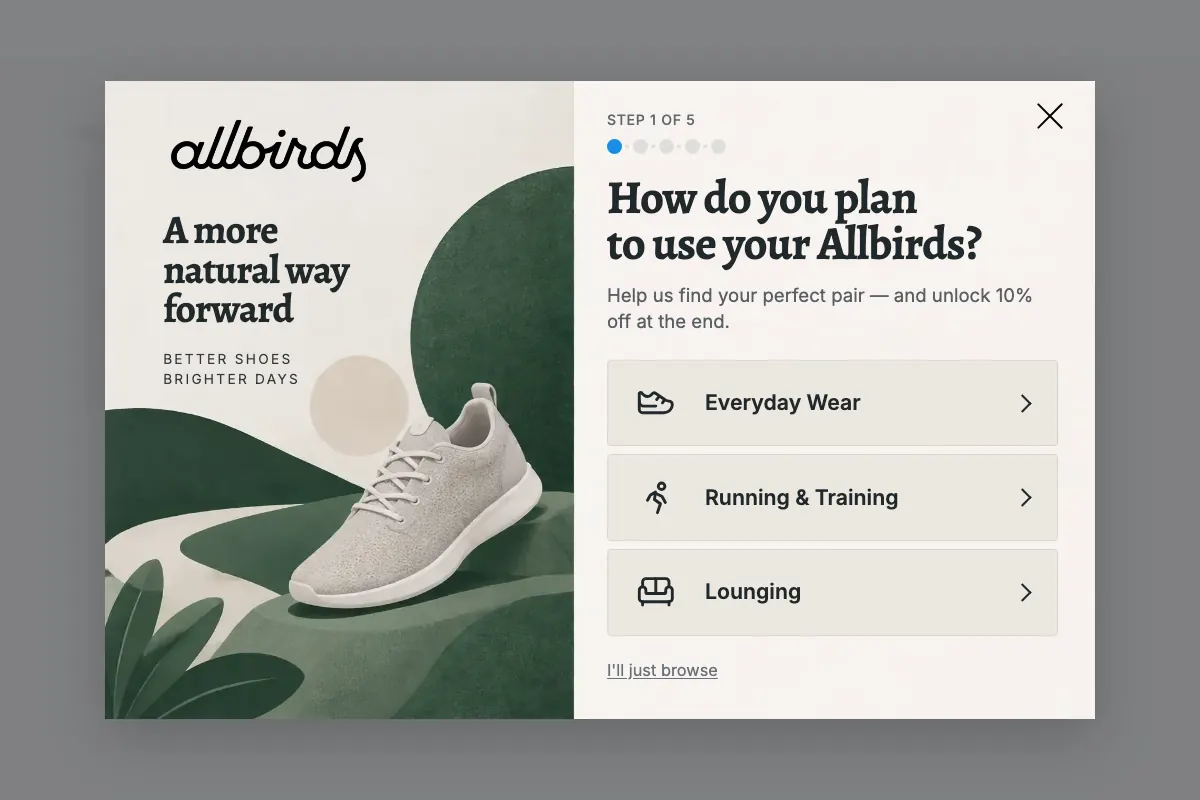
A quiz popup asks visitors a few quick questions, one tap each, then asks for their email to show the result. People answer because it's about them, and you learn what they want before they buy.
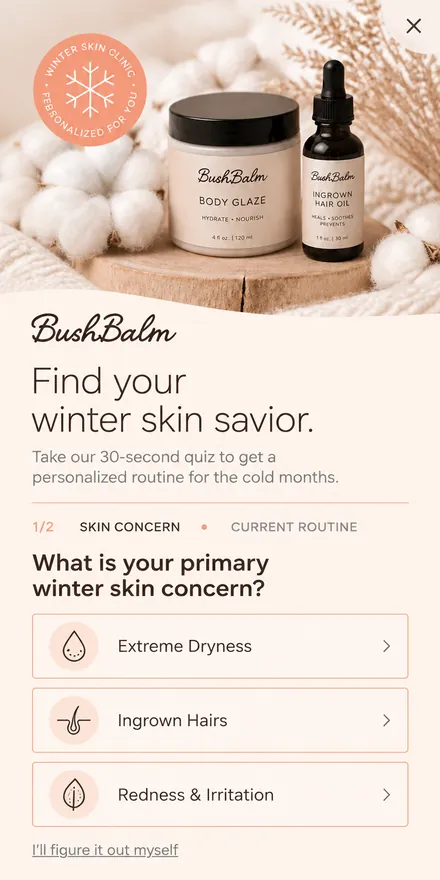
From your domain to a live quiz
No template to pick and no editor to learn. You stay in charge of every choice.
Enter your domain
The agent reads your store and picks up your colors, fonts, products, and tone.
Pick one of four concepts
Every concept is in your brand. Choose one, or ask for a change in plain words.
Write the questions, then publish
The agent drafts the questions and answers from your products, adds the email step and the result, and hands you a live preview link.
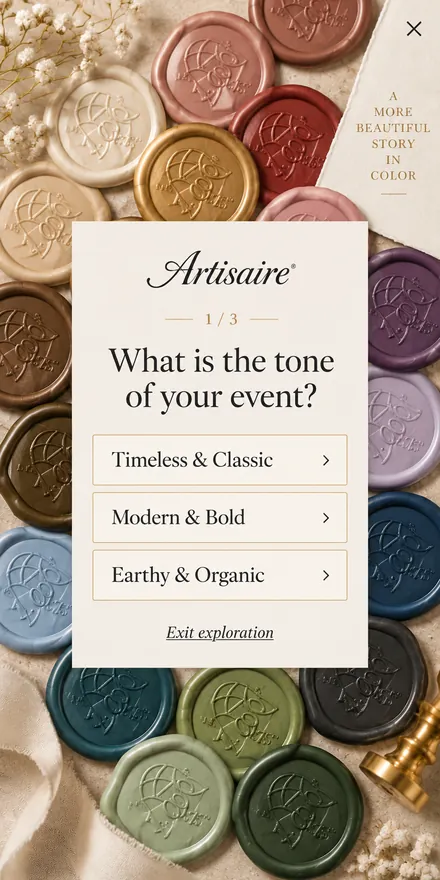
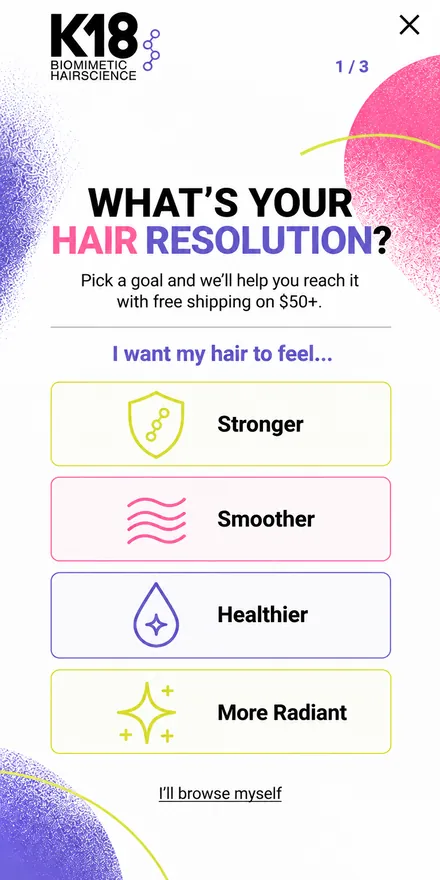
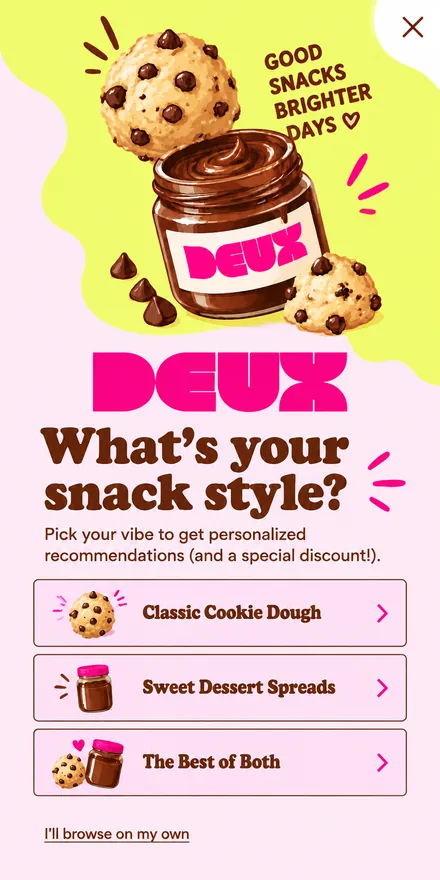
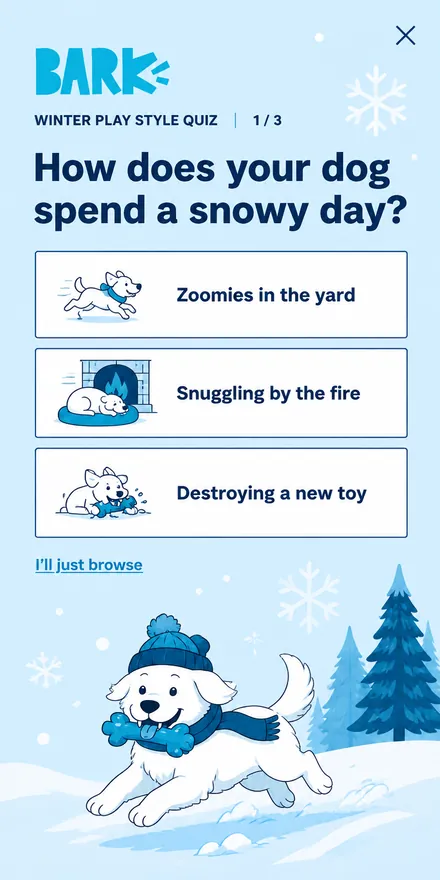
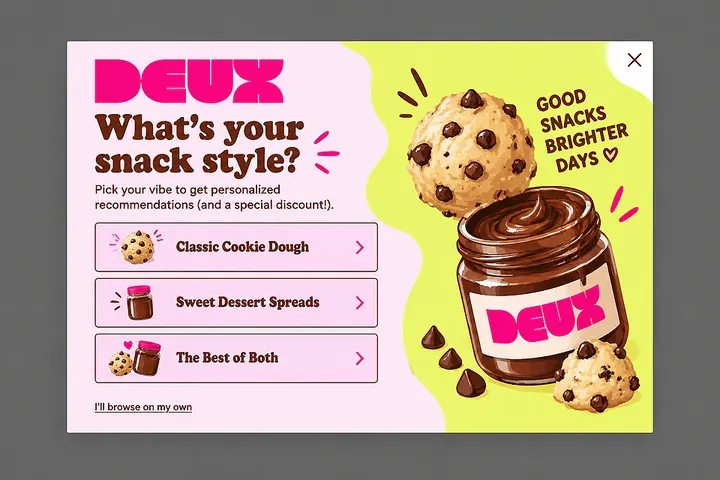
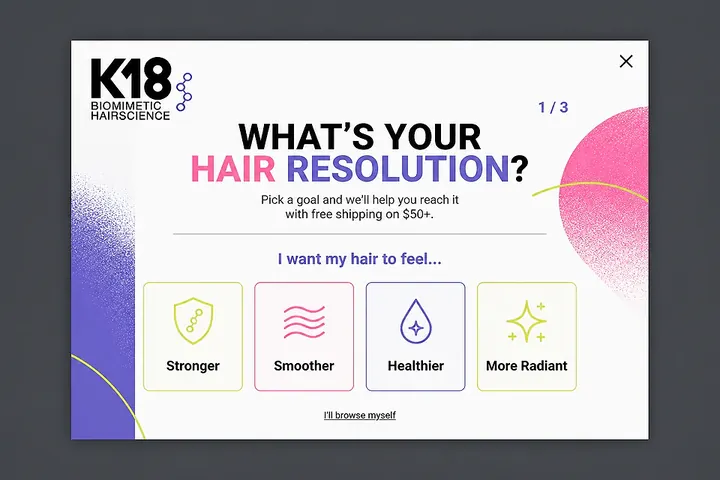
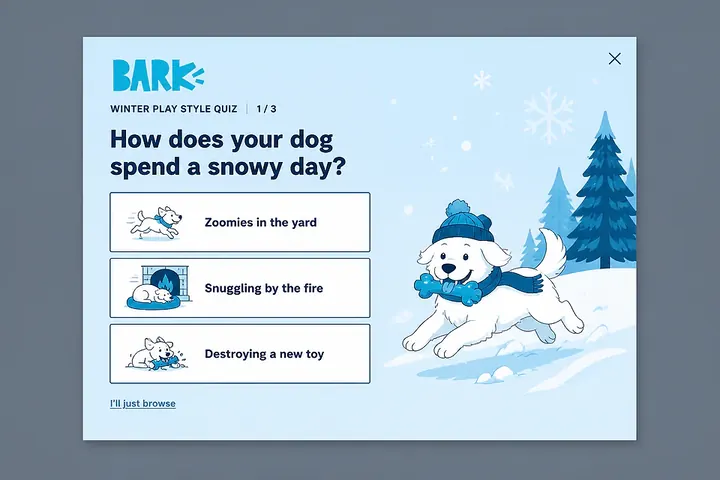
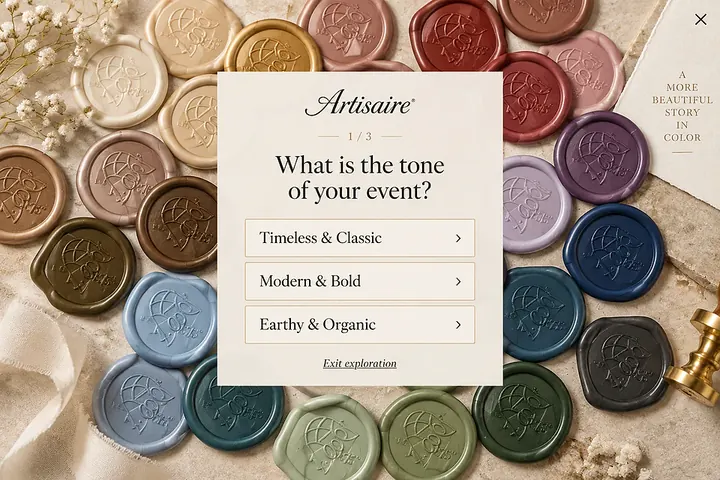
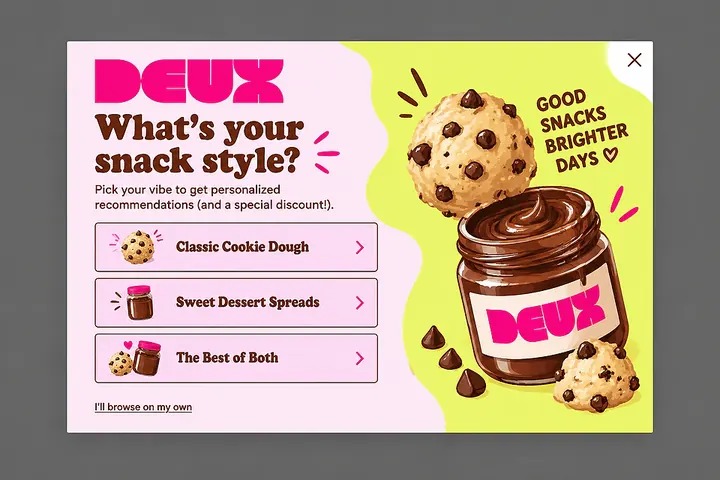
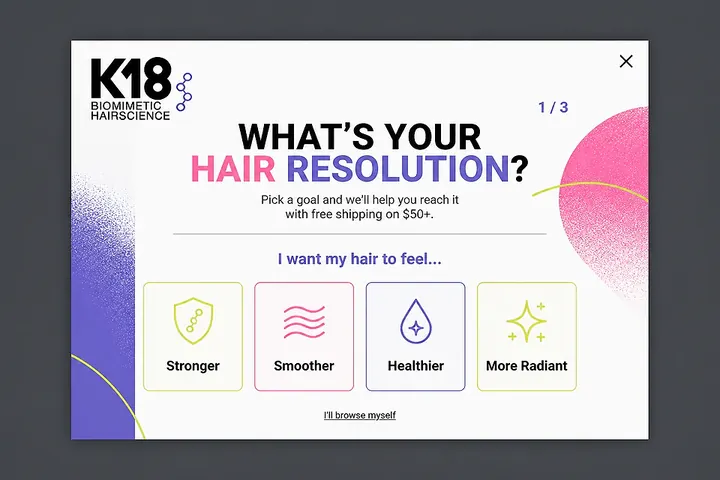
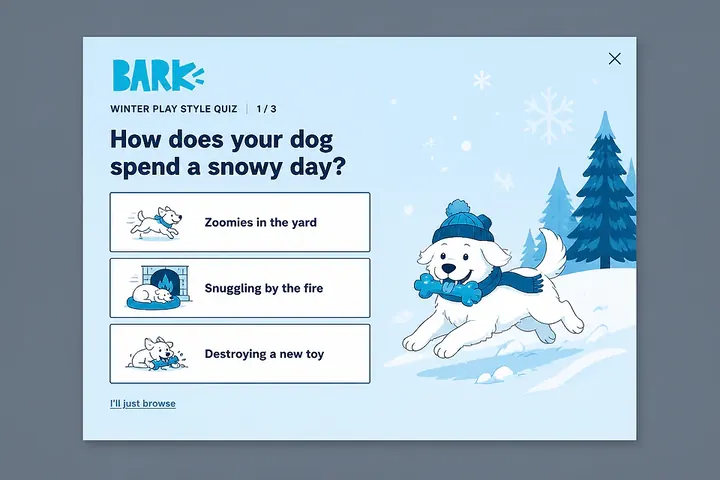
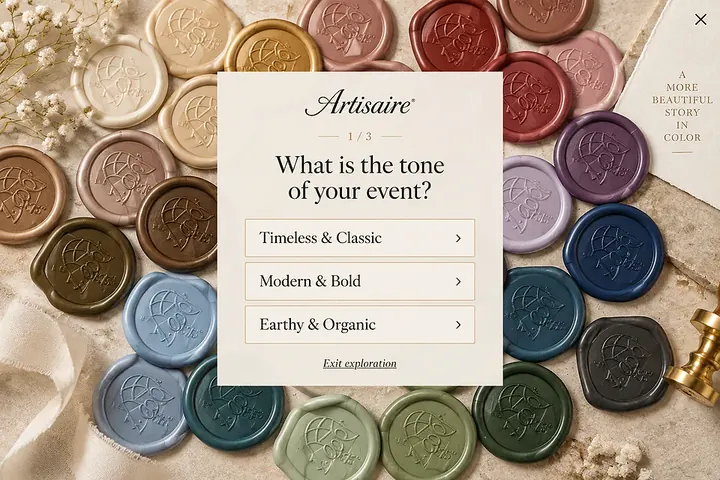
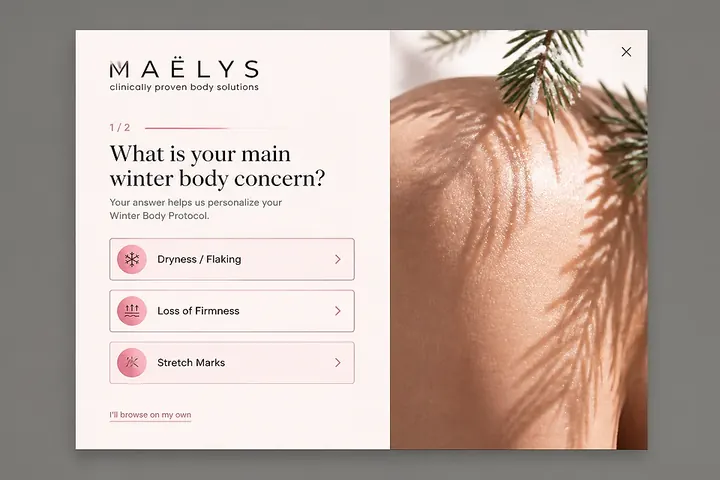
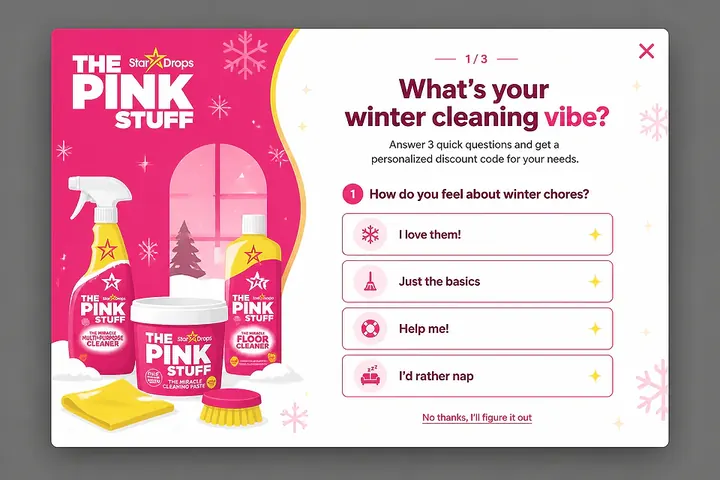
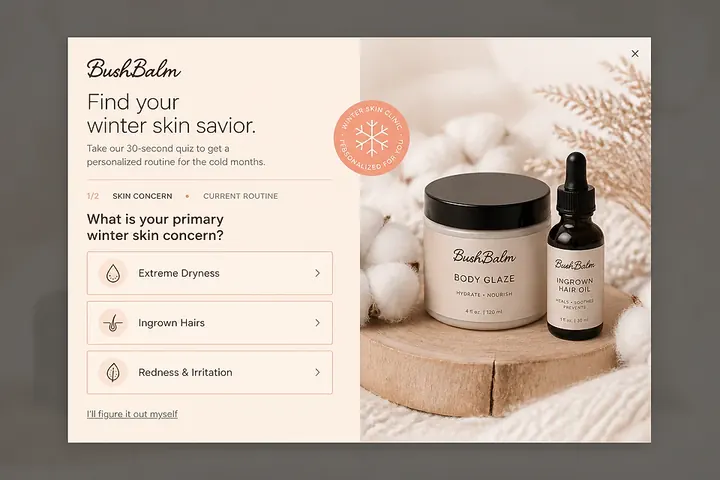
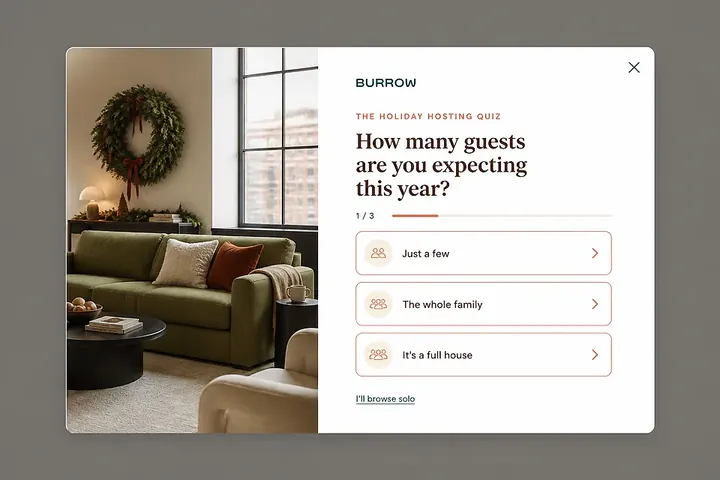
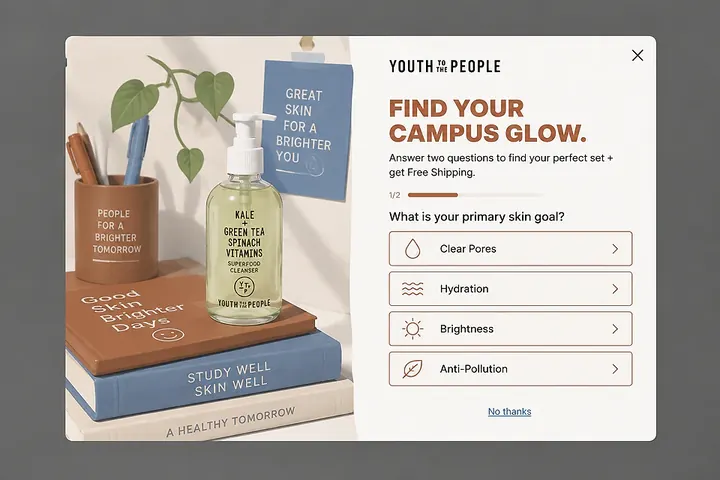
Quiz popup concepts from the library
Quizzes the agent designed. Open any of them and use it as your starting point.
What the agent sets up for you
A working quiz on your store, not a picture of one.
Questions, one tap each
Every question gets its own step with two to six answer tiles. A tap moves the visitor on. The last steps ask for the email and show the result.
Who sees it, and when
Show the popup on exit intent, after a delay, or on scroll. Narrow it to new or returning visitors, a country, a traffic source, or a cart value.
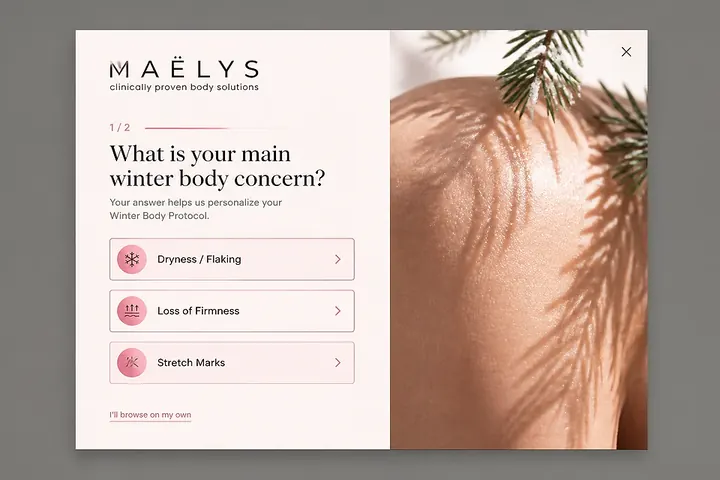
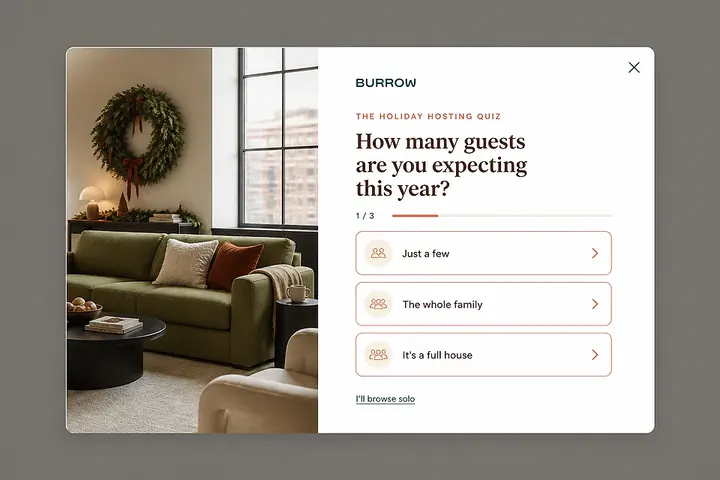
Two designs, one campaign
Keep a second concept as a variant and test the two against each other. You see which one wins, and by how much.
Prompts to start from
Pick one and the agent opens with it. Make it yours along the way.
 Claude
 ChatGPT
 Cursor
Take the 20-second quiz
Three questions, one tap each, then the result. This is what your visitor gets.
Questions about quiz popups
What is a quiz popup?
It's a popup that asks a few multiple-choice questions, one per step, and shows a result at the end, usually after the visitor leaves an email.
How many questions should a quiz popup have?
Two to four. It should take under half a minute, and every question should be answerable with one tap.
Where should the email step go?
Right before the result. By then the visitor has invested a few taps and wants to see the answer.
Is a quiz popup the same as a survey?
No. A survey collects opinions for you. A quiz gives the visitor something back: a recommendation, a match, or an offer.
Do quiz popups work on mobile?
Yes. Answer tiles are sized for thumbs, and every tap moves to the next step.
Is it free to try?
Yes. You get four design plans for your store without signing up, and the free plan includes every feature for up to 10,000 pageviews a month.
Get your quiz popup plans in 60 seconds
Enter your domain and watch the agent design your quiz.