Expected results
Difficulty
Advanced
Industry
Any
Goals
Increase sales
When to use it?
Most businesses ask for their subscribers’ first names so they can personally greet them in emails. If you already have this data, why not use it on your landing pages, too?
Imagine greeting your customers by name as they land on your website: their hearts might just skip a beat when they see a personalized headline like, “Hey Ryan, we've been expecting you!” This will create an emotional connection with your customers.
Don't leave money on the table by sticking to generic landing pages. Use the data you already have and personalize your pages to create an unforgettable experience for your customers. You'll see incredible results when it comes to your conversion rates and ROI.
How to set it up?
This tactic can be implemented in two ways:
1. If you've gathered subscribers' first names and emails via OptiMonk, no custom code is needed as OptiMonk automatically recognizes identified visitors' first names. Proceed directly to Step 3.
2. For identifying contacts not signed up through OptiMonk, follow the custom code instructions in Steps 1 and 2.
Step 1: Use UTM parameters in your emails
Add UTM parameters to your URLs. In this example, the first name will be needed of the visitor, so this is how our URL will look like: https://varnishandvine.com/?utm_firstname=John
Step 2: Write a custom JS
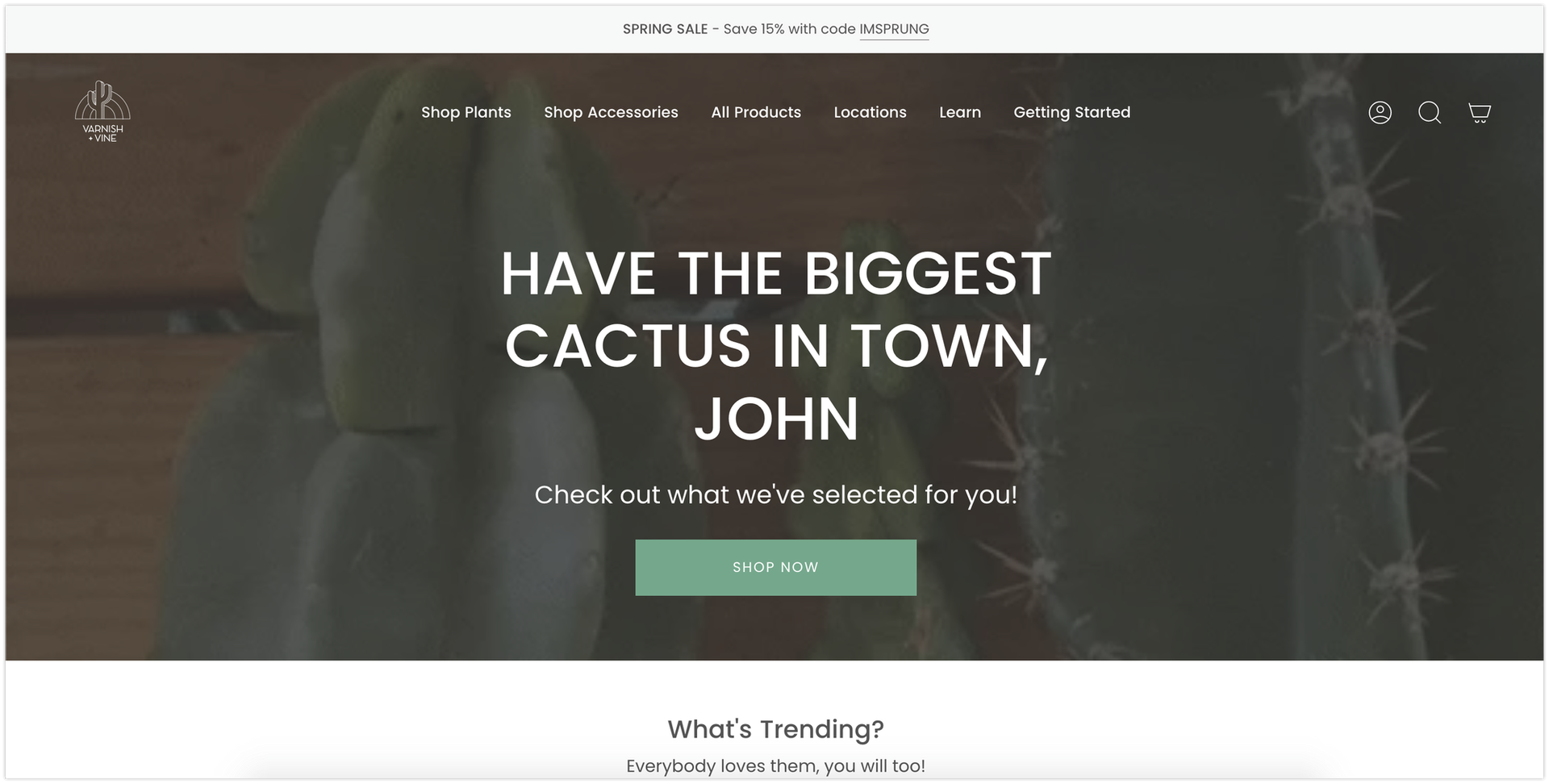
In this example, we would like to add the first name of the visitor to the headline of the homepage (plus we would also like to change the copy slightly):

This is what the code looks like:
`var urlParams = new URLSearchParams(window.location.search); var param1 = urlParams.get('utm_firstname');
var ls = JSON.parse(localStorage.getItem('OptiMonkVisitorAttributes'));
ls.utm_firstname = param1;
localStorage.setItem('OptiMonkVisitorAttributes', JSON.stringify(ls));`
We will retrieve the first name from the URL where we have just added the campaign parameters plus using the following variable: new URLSearchParams(window.location.search)
The retrieved data will be injected to local storage (OptiMonkVisitorAttributes) as utm_firstname.
Step 3: Use Dynamic Content
You will need to define which part you would like to replace in your original text. Dynamic Content is needed to modify the text on your page, while the dynamic First name tag will be responsible for handling the change in the background.
Firstly, create a new Dynamic Content campaign.


Then add the First Name to your headline, using the following formats:
If you're using custom code: [[attribute:url_firstname|Visitor]]
If your contacts subscribed via OptiMonk: [[attribute:firstname|Visitor]]
This variable will extract the first name, relying on the previously described custom code.
So your headline will look something like this:
Hey [[attribute:url_firstname|Visitor]], welcome back
Step 4: Target your campaign
If you're using the custom code version: Target those users where Visited URL contains utm_firstname.

To target all visitors identified by OptiMonk, direct your campaign to the specific page where you intend to dynamically change the headline.
Step 5: Activate your campaign
This is how it will look like: