


What's New - June 2026
Six new features to help you prep for peak season — from a brand new analytics dashboard to unique coupon codes for Lucky Wheel, autosave, and more.
The last couple of months at OptiMonk were all about improvements. Here's what we've been working on.
In short
Explore OptiMonk's latest enhancements, including a new color picker for consistent branding, mobile teaser toggles for improved user experience, and engaging Lucky Wheel templates for interactive lead generation. Optimize your campaigns with geolocation targeting and an improved scheduler to boost conversions. Join our VIP Research Group to test cutting-edge features before anyone else.
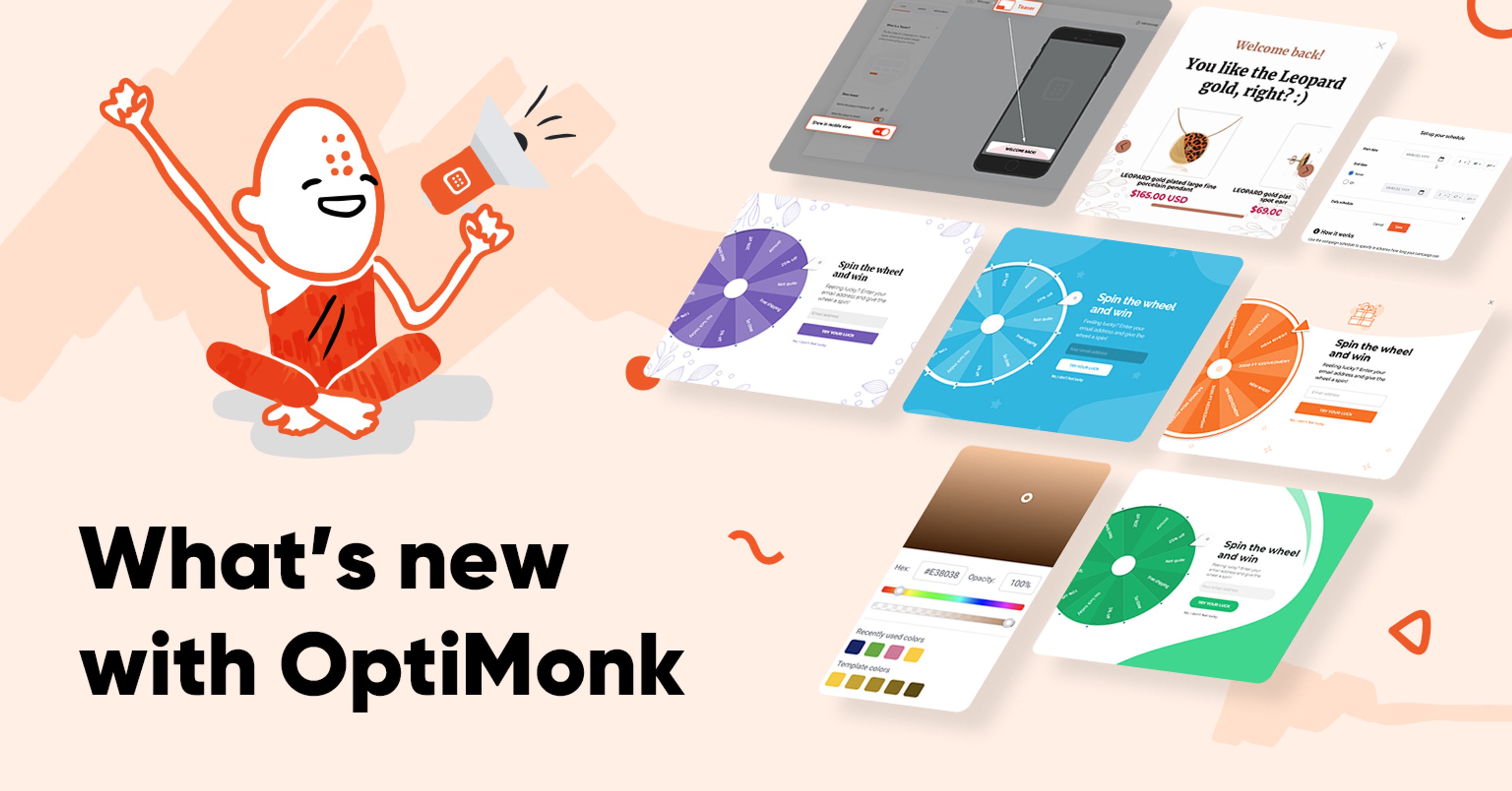
The last couple of weeks at OptiMonk were all about improvements. While some changes may seem tiny, they are crucial for improving our platform. Here's what we've been working on:
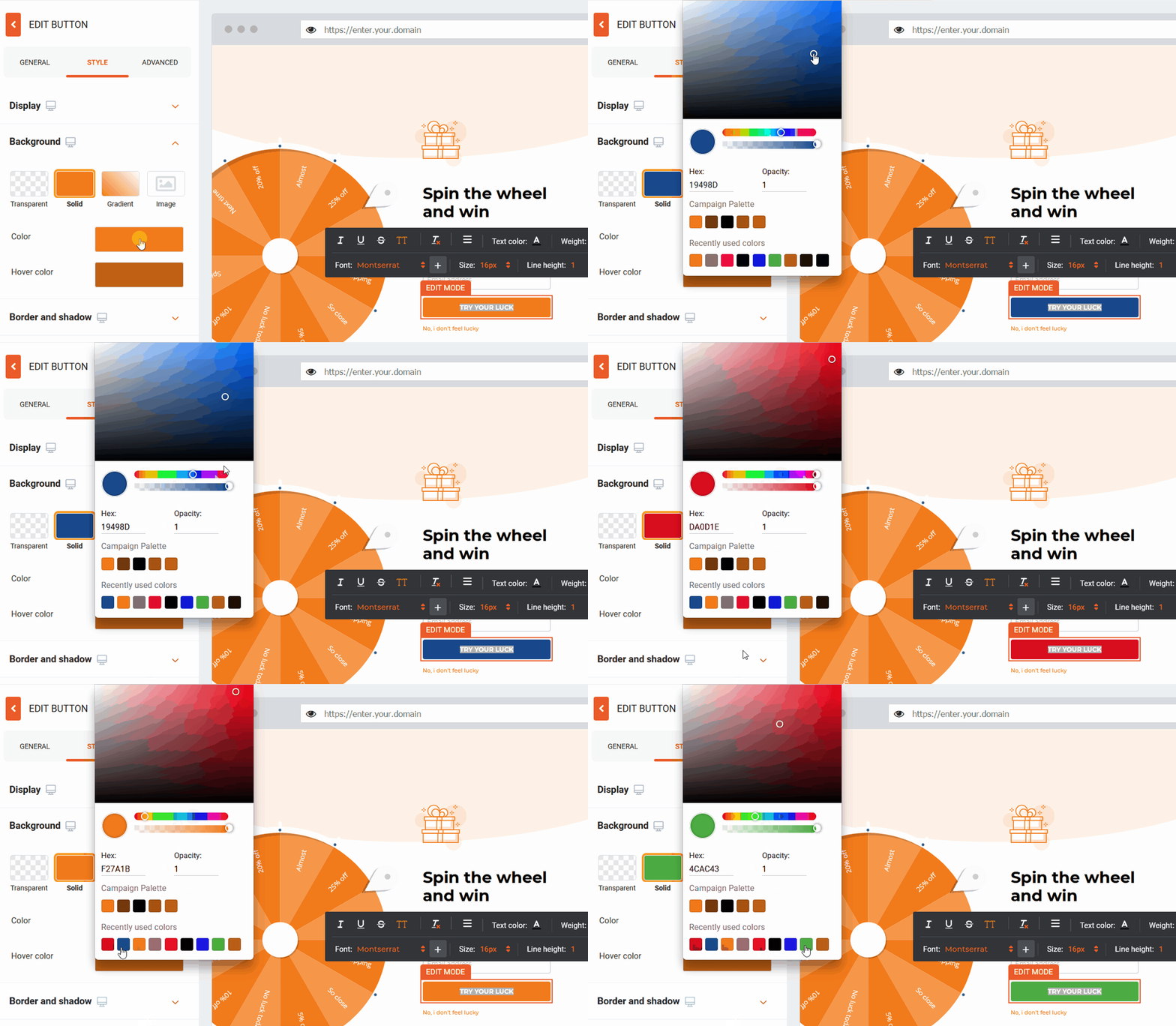
Our new and improved color picker lets you select your recently used colors.
If you use the same colors in your campaigns (such as your brand's colors), now you don't have to manually enter the color code every time. Just set the color you wish to use for your element and background, then close the color picker.
The next time you open your color picker, you'll find the last color(s) you used in the "recently used color" section. This makes it easier for you to choose the same colors in all of your OptiMonk campaigns so your popup designs are consistent with your website and brand.
OptiMonk’s template themes reduce the time you’ll spend on design.
You can reflect your brand’s personality and make your offers look stylish with our universal popup ideas.
With the new toggle in the Editor teaser step – it's now possible to enable and disable the teaser in mobile view. Teasers are enabled for mobile view by default. (You can disable it at "Show in mobile view" setting.)
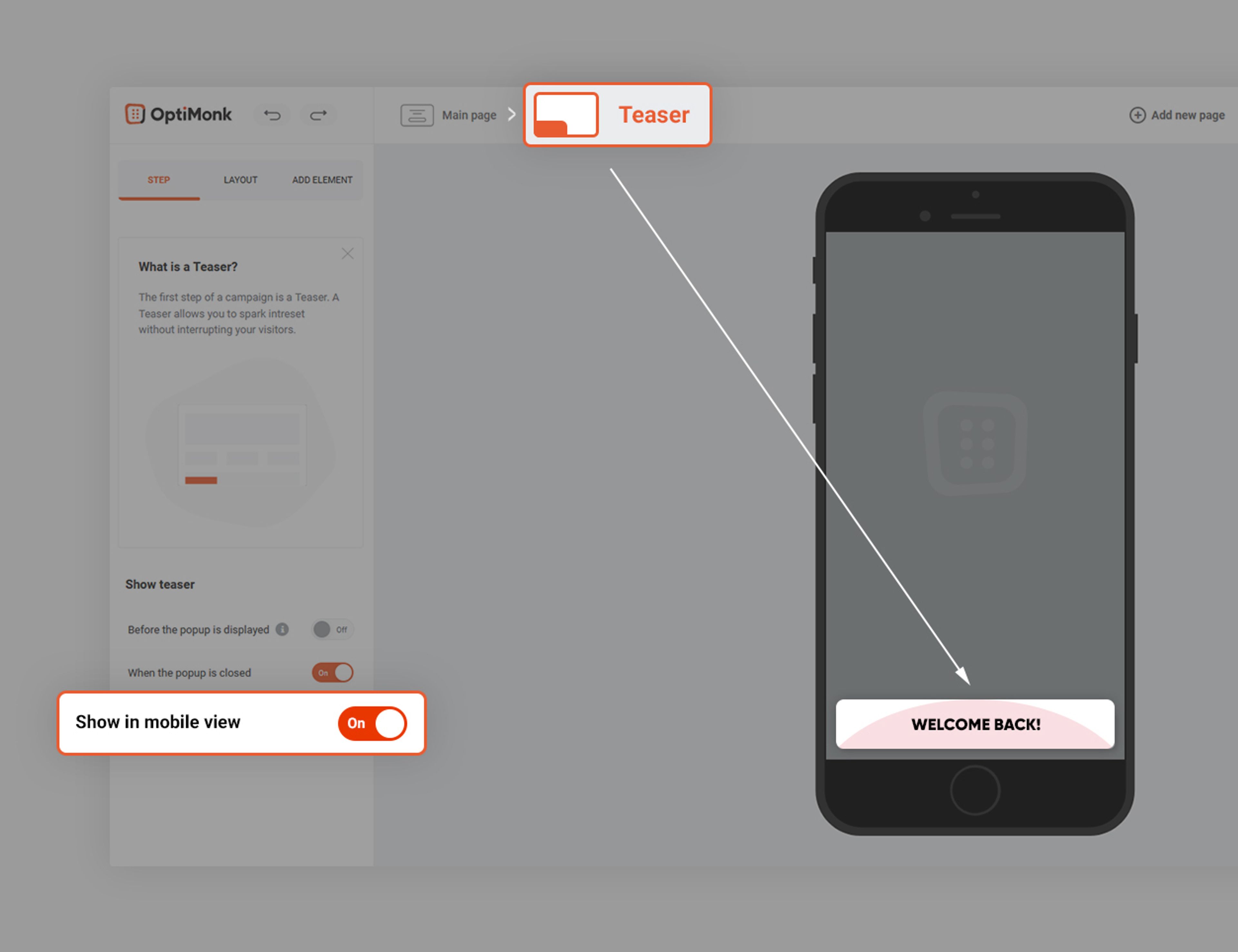
This setting is helpful for anyone who has ever needed to duplicate campaigns in order to hide the teaser from mobile visitors.
Sometimes a teaser might cover website elements like menus and navigation panels on mobile devices, which can hurt your visitor's onsite experience. Now you can fix that with a click of a button.
The teaser is a soft notification for your campaign that's designed to grab your visitors' attention before or after they interact with your popup.
(To set it up you need to enable the "Before the popup is displayed" toggle.)
(To set it up you need to enable the "When the popup is closed" toggle.)
Read more about the teaser and the settings here.
With these new lucky wheel popup templates, you can design a visually stunning gamified popup for your website in seconds.
Use the color picker to modify the color scheme of your popup to match your website and brand. Creating professional campaigns has never been easier.
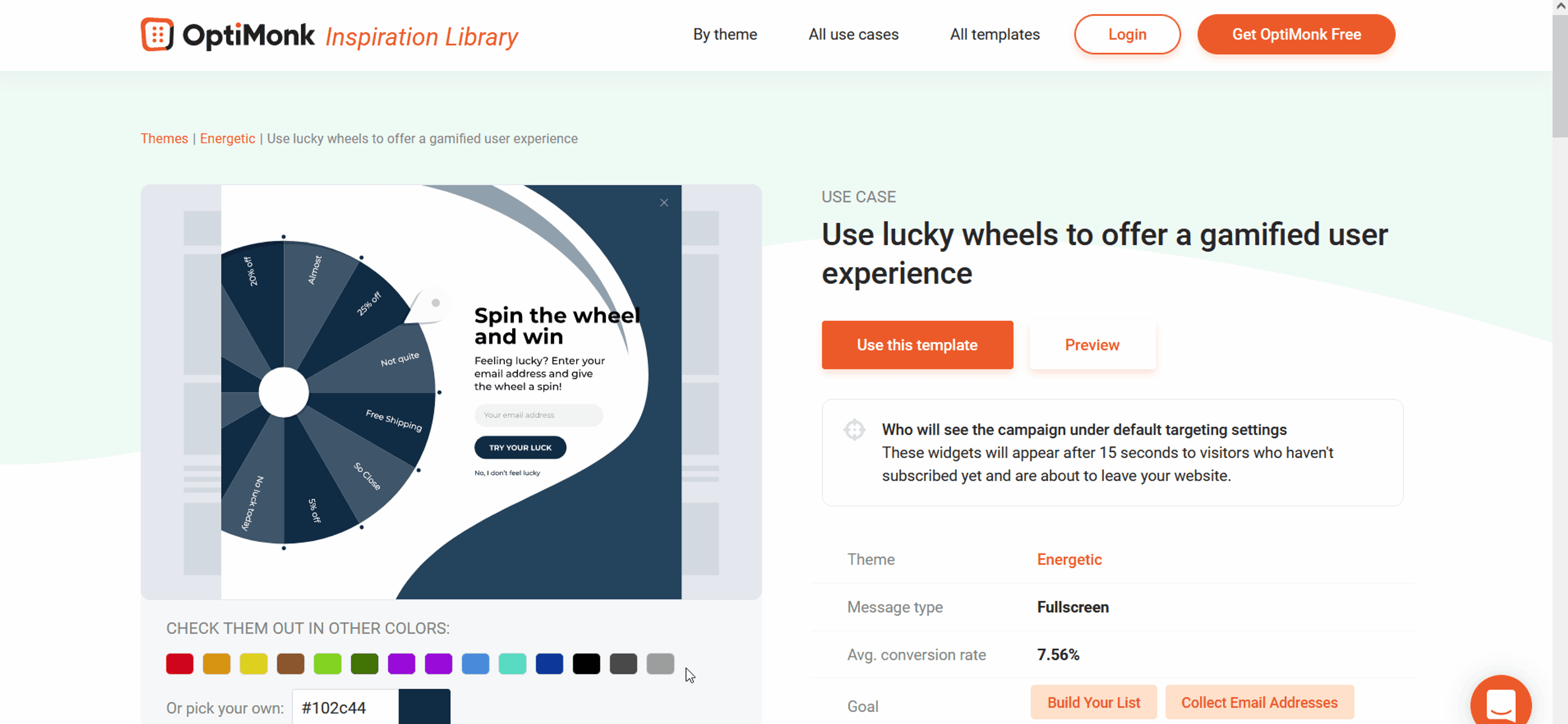
Universal lucky wheel popups come in 4 different themes:
If you're looking for different design styles, check out the pre-built lucky wheel popup templates here.
It’s getting harder for online store owners to collect contact information from their visitors. Lead generation doesn’t work with you bombard visitors with disruptive popups. Most will ignore your message and leave.
Using the lucky wheel popup lets you add a little fun to your onsite messages. You engage visitors using an interactive popup that’s different from the popups they ignore every day. Plus, they get a chance to win discounts––and who doesn’t love winning something?
You can read more about the lucky wheel popups and examples here.
The improved country selector now lets you exclude visitors from specific countries from seeing your campaign. You still have the option to target specific countries. We just made the process even easier than before. If you want to quickly exclude a few countries from your campaign, now you can do it in a fraction of the time.
The countries you want to target will appear as individual tags. This makes it easier to manage and modify your campaign settings.
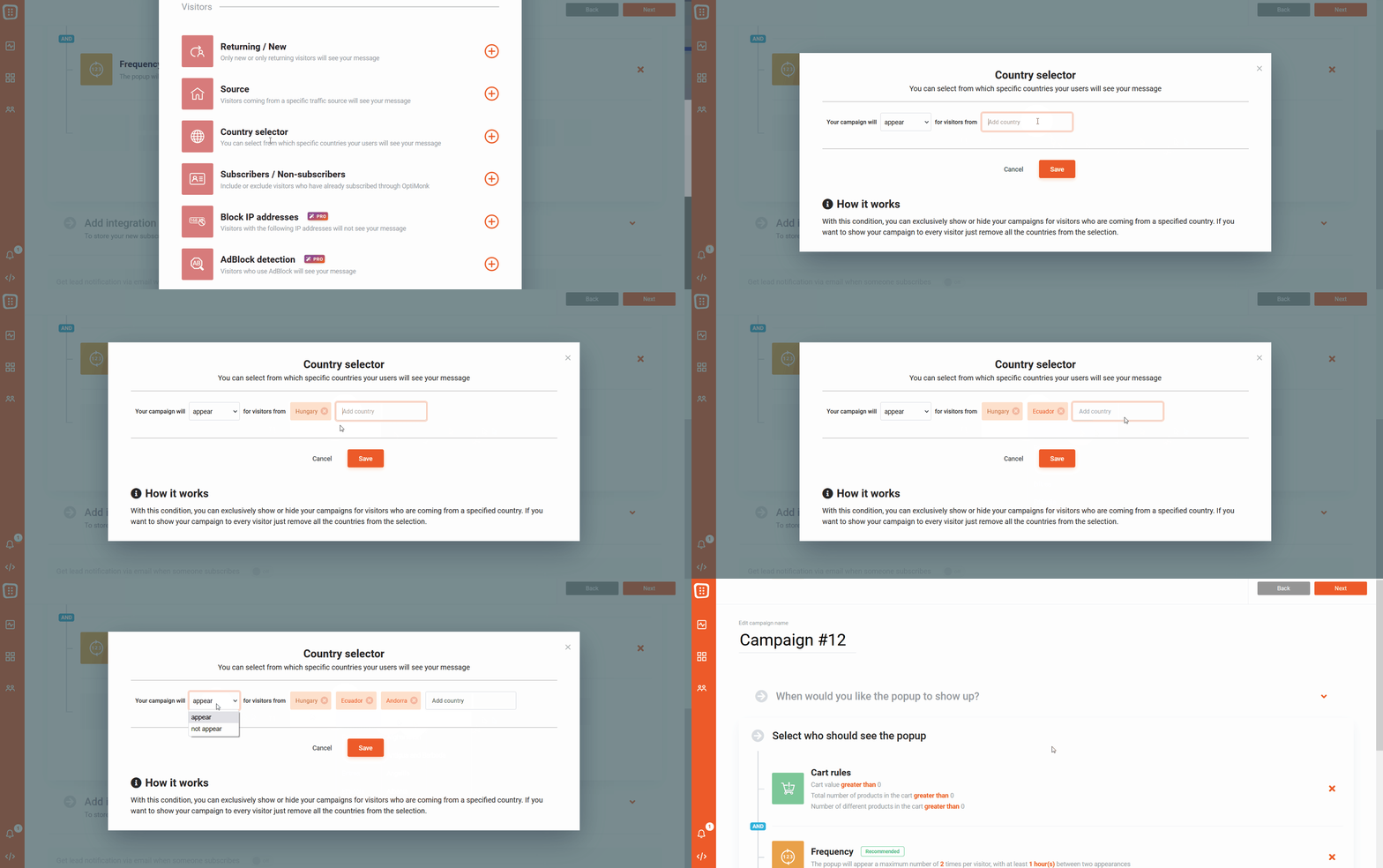
If you sell internationally, you can set the targeting based on country to any of your campaigns, choosing one or more countries at the same time.
👉 Tip:
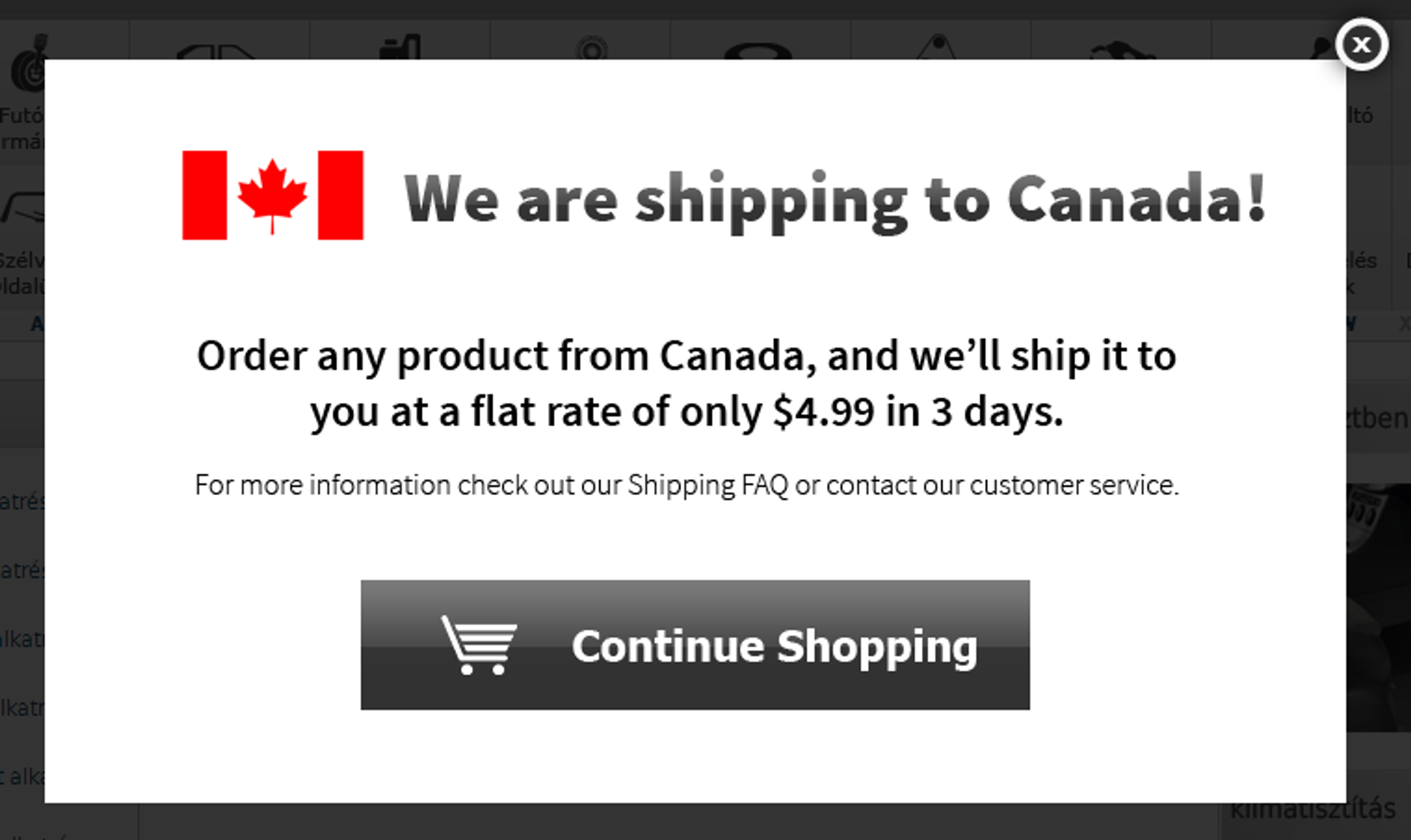
Wanna try? Register for a free OptiMonk account to put your campaign in motion.

We made it easier for you to schedule campaigns around your marketing strategy.
Your campaign will automatically start and stop based on the specific days and times during the day you choose. When you set the time, the scheduler uses your time zone.
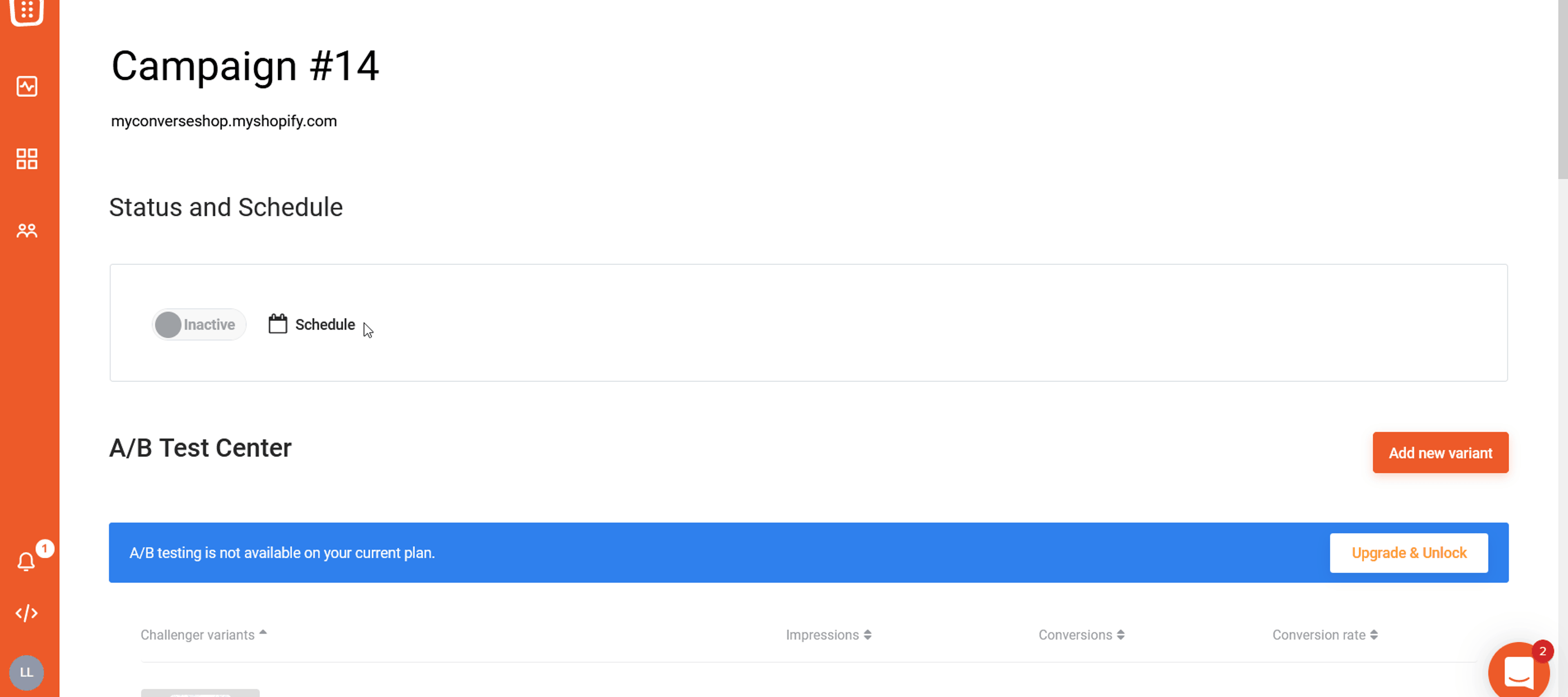
👉 Tip: Create a special, limited-time offer, and activate and deactivate the campaign automatically.
Running a deal for a limited time is a great way to motivate customers to buy from you. Seasonal campaigns work well because urgency is already baked into them.
Customers know that your event will run for a set time period—so there’s no need to use “fake urgency”.
We are currently recruiting volunteers to join our VIP Research Group where you can try and test new cutting-edge campaign features before anyone else.
Comment below, or send an email to userresearch@optimonk.com if you would like to test the new tools we're developing!

Six new features to help you prep for peak season — from a brand new analytics dashboard to unique coupon codes for Lucky Wheel, autosave, and more.
This release brings smarter, faster, and more personalized popup campaigns, powered by AI Editor, AI Popups, product page optimization, and deeper integrations.

This release focuses on new features that make it easier to turn your visitors into customers, from smart product recos to more flexible campaign management.